
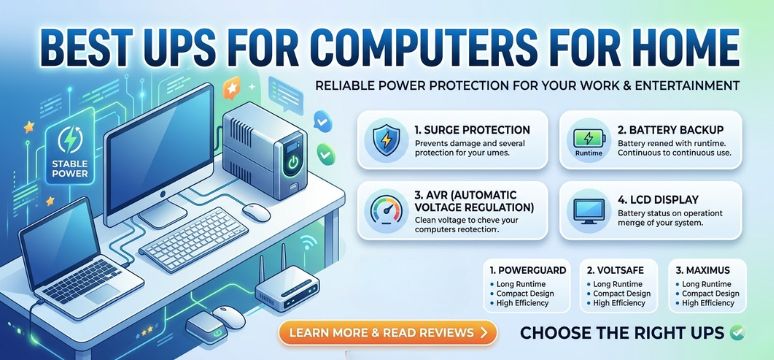
In today’s technology-driven world, computers are essential for work, business, gaming, education, and data management. Unexpected power outages, voltage fluctuations, and electrical surges can cause data loss, hardware damage, interrupted workflows, and expensive repairs. This is where a high-quality UPS (Uninterruptible Power Supply) becomes a crucial investment.
A UPS for computers provides instant backup power when electricity fails and protects systems from unstable voltage conditions. Whether you are running a home office, gaming PC, workstation, or business server, choosing the right UPS system ensures continuous operation and maximum protection.
In this comprehensive guide, we explore the best UPS for computers, how they work, the key features to consider, different UPS types, and how to choose the perfect model for your needs.
What is a UPS and Why Every Computer Needs One
A UPS (Uninterruptible Power Supply) is a device that sits between your computer and the electrical outlet. It stores energy in batteries and automatically supplies backup power during outages or fluctuations.
The primary purpose of a UPS is to:
-
Provide immediate backup power
-
Protect against voltage spikes
-
Prevent sudden shutdowns
-
Safeguard sensitive electronics
-
Allow time to save files and safely power down systems
Unlike generators, a UPS provides instant power within milliseconds, ensuring that your computer never loses electricity when the grid fails.
Major Problems a UPS Prevents
Without a UPS, computers are vulnerable to:
-
Power outages
-
Voltage drops (brownouts)
-
Electrical spikes
-
Surges caused by lightning
-
Sudden shutdowns that corrupt files
Using a reliable UPS system ensures your computer hardware and valuable data remain protected at all times.
How a UPS Works
A UPS operates using three essential components:
| Component | Function |
|---|---|
| Battery | Stores backup power |
| Inverter | Converts battery DC power to AC power |
| Rectifier | Charges the battery when electricity is available |
When power from the wall socket fails, the UPS instantly switches to battery mode, ensuring the connected computer continues running without interruption.
Most UPS systems can provide 5 to 30 minutes of backup power, depending on capacity and load.
Types of UPS for Computers
Understanding the different types of UPS systems helps you choose the most suitable solution for your setup.
Offline / Standby UPS
The Offline UPS is the most basic and affordable type.
Key Characteristics
-
Switches to battery only when power fails
-
Provides surge protection
-
Suitable for home computers and small setups
Advantages
-
Low cost
-
Simple design
-
Energy efficient
Limitations
-
Slight switching delay
-
Limited voltage regulation
Best for:
-
Home PCs
-
Basic office computers
-
Routers and networking devices
Line-Interactive UPS
The Line-Interactive UPS is one of the most popular choices for computer users.
Key Characteristics
-
Automatic voltage regulation (AVR)
-
Corrects minor voltage fluctuations
-
Faster switching time
Advantages
-
Better power conditioning
-
Protects against brownouts and surges
-
Ideal for small offices
Best for:
-
Workstations
-
Gaming PCs
-
Office computers
Online / Double Conversion UPS
The Online UPS offers the highest level of power protection.
Key Characteristics
-
Continuous power conversion
-
Zero transfer time
-
Perfect voltage stability
Advantages
-
Maximum protection
-
Ideal for sensitive equipment
-
Used in professional environments
Best for:
-
Servers
-
Data centers
-
High-end workstations
Key Features to Consider When Buying a UPS for Computers
Choosing the best UPS requires evaluating several important specifications.
Power Capacity (VA Rating)
UPS capacity is measured in Volt-Amperes (VA).
| UPS Capacity | Suitable Devices |
|---|---|
| 600–800 VA | Single PC + monitor |
| 1000–1500 VA | Gaming PC + peripherals |
| 2000 VA and above | Multiple systems or servers |
Always select a UPS with at least 30–40% more capacity than your system’s power consumption.
Battery Backup Time
Backup duration determines how long your computer stays operational during outages.
Typical backup times:
-
5–10 minutes for high-load systems
-
10–20 minutes for standard PCs
-
20–30 minutes for low power setups
This gives enough time to save work and safely shut down devices.
Automatic Voltage Regulation (AVR)
AVR stabilizes voltage fluctuations without switching to battery.
Benefits include:
-
Longer battery life
-
Reduced wear on components
-
Consistent power supply
Surge Protection
A quality UPS must protect against:
-
Lightning strikes
-
Voltage spikes
-
Electrical noise
Surge protection prevents damage to motherboards, power supplies, and storage drives.
LCD Display and Monitoring
Modern UPS systems feature digital displays and software monitoring.
These allow users to:
-
Monitor battery status
-
Track power usage
-
Receive alerts
-
Automatically shut down computers
Best UPS for Computers in 2026
Below are some of the most reliable UPS options for computers.
APC Back-UPS Series
APC is one of the most trusted UPS manufacturers globally.
Features
-
Automatic voltage regulation
-
Battery backup outlets
-
Surge protection
-
Compact design
Ideal for
-
Home users
-
Office computers
-
Gaming PCs
CyberPower UPS Systems
CyberPower offers high performance UPS units with excellent value.
Features
-
Simulated sine wave output
-
Energy-efficient design
-
LCD monitoring display
-
USB connectivity
Ideal for
-
Workstations
-
Home offices
-
Professional setups
Eaton UPS Systems
Eaton provides enterprise-grade power protection.
Features
-
Advanced power management
-
Long battery runtime
-
High efficiency
-
Rack mount options
Ideal for
-
Businesses
-
Servers
-
IT infrastructure
Vertiv Liebert UPS
Vertiv offers premium UPS solutions for mission-critical systems.
Features
-
Double conversion technology
-
Smart battery management
-
Remote monitoring
Ideal for
-
Data centers
-
Professional studios
-
Large enterprises
How to Calculate the Right UPS Size for Your Computer
Follow these steps to determine the correct UPS capacity.
Step 1: Calculate Total Power Consumption
Add the wattage of:
-
Computer
-
Monitor
-
Router
-
External drives
-
Speakers
Example:
| Device | Power |
|---|---|
| Desktop PC | 400W |
| Monitor | 80W |
| Router | 20W |
| Total | 500W |
Step 2: Convert Watts to VA
Most UPS calculations use:
VA = Watts ÷ Power Factor
Typical power factor is 0.6–0.7.
Example:
500W ÷ 0.6 = 833 VA
Recommended UPS: 1000 VA or higher.
UPS vs Surge Protector
Many people confuse UPS devices with surge protectors.
| Feature | UPS | Surge Protector |
|---|---|---|
| Backup power | Yes | No |
| Voltage regulation | Yes | No |
| Surge protection | Yes | Yes |
| Prevents shutdown | Yes | No |
A surge protector only blocks spikes, while a UPS keeps your computer running during outages.
Benefits of Using a UPS for Computers
Using a UPS offers multiple advantages.
Data Protection
Prevents file corruption and data loss.
Hardware Safety
Protects expensive components like:
-
Motherboards
-
GPUs
-
SSDs
-
Power supplies
Business Continuity
Ensures work continues during short outages.
System Stability
Maintains stable power levels.
Best UPS for Different Use Cases
Best UPS for Home Computers
Recommended capacity: 600–1000 VA
Suitable for:
-
Browsing
-
Online work
-
Light gaming
Best UPS for Gaming PCs
Gaming PCs require higher power.
Recommended capacity: 1200–1500 VA
Supports:
-
High-end GPUs
-
Large monitors
-
RGB peripherals
Best UPS for Office Workstations
Recommended capacity: 1500–2000 VA
Handles:
-
Multiple monitors
-
Work software
-
Network equipment
Best UPS for Servers
Recommended capacity: 3000 VA or higher
Provides:
-
Long runtime
-
Enterprise reliability
-
Network management
Tips to Extend UPS Battery Life
UPS batteries typically last 3–5 years.
To maximize lifespan:
-
Avoid overloading the UPS
-
Keep the unit in a cool environment
-
Replace batteries regularly
-
Perform periodic testing
Common UPS Installation Mistakes
Avoid these common issues.
Overloading the UPS
Connecting too many devices reduces runtime.
Using UPS for High-Power Appliances
Never connect:
-
Printers
-
Heaters
-
Air conditioners
Poor Ventilation
UPS systems generate heat and require airflow.
Future of UPS Technology
Modern UPS systems are evolving with advanced technologies such as:
-
Lithium-ion batteries
-
Smart monitoring apps
-
AI-powered energy management
-
Cloud-based UPS management
These innovations provide greater efficiency, longer battery life, and improved reliability.
Conclusion: Choosing the Best UPS for Your Computer
Selecting the best UPS for computers ensures your devices remain protected from unpredictable electrical issues. A reliable UPS provides instant backup power, surge protection, voltage regulation, and peace of mind.
Whether you use a computer for gaming, professional work, or business operations, investing in a high-quality UPS safeguards your system and prevents costly downtime.
Choosing the right UPS means evaluating capacity, runtime, voltage regulation, and reliability. By selecting a trusted brand and appropriate capacity, you can guarantee maximum protection and uninterrupted productivity.
FAQs
1. What is the best UPS capacity for a computer?
For most desktop computers, 1000–1500 VA UPS systems provide reliable backup power.
2. How long can a UPS run a computer?
Typical UPS runtime ranges from 5 to 20 minutes, depending on power load.
3. Can a UPS power a gaming PC?
Yes, but gaming PCs require higher capacity UPS units (1200–2000 VA).
4. Does a UPS protect against power surges?
Yes, most UPS devices include built-in surge protection.
5. How often should UPS batteries be replaced?
UPS batteries typically last 3–5 years.
6. Can a UPS run a computer all day?
No. UPS devices are designed for temporary backup, not continuous power supply.
7. Is a UPS necessary for laptops?
Laptops already have batteries, but a UPS can protect chargers and external devices.
8. Can I connect a printer to a UPS?
High-power printers should not be connected to UPS battery outlets.
9. What happens if UPS battery dies?
The UPS will function as a surge protector only.
10. Does UPS consume electricity?
Yes, but the consumption is very minimal.
11. Can UPS stabilize voltage?
Line-interactive and online UPS systems provide automatic voltage regulation.
12. How do I know if my UPS is overloaded?
Most UPS units display overload warnings or alarms.
13. Is sine wave output important?
Yes. Pure sine wave UPS systems are better for sensitive electronics.
14. What size UPS for dual monitor setup?
A 1200–1500 VA UPS is recommended.
15. Can UPS damage computer?
No. A quality UPS protects computers.
16. How long does UPS charging take?
Most UPS units recharge in 4–8 hours.
17. What is VA rating?
VA measures UPS power capacity.
18. Can UPS protect internet router?
Yes, a UPS can keep routers and modems running during outages.
19. Do UPS batteries require maintenance?
Minimal maintenance is required.
20. Can UPS run a monitor?
Yes, monitors can be connected to UPS battery outlets.
21. Are UPS systems noisy?
Most modern UPS units operate quietly.
22. Can UPS prevent data loss?
Yes, UPS systems allow time to save files and shut down properly.
23. What happens when UPS battery runs out?
The connected devices will shut down automatically.
24. Is online UPS better than line-interactive?
Yes, online UPS offers higher protection but costs more.
25. Can UPS protect against lightning?
UPS devices provide limited lightning protection through surge suppression.
For more information and to start using Roobae.com, visit our official website and download the app to stay updated on the best deals and offers. With Roobae.com, you can ensure that every shopping experience is not just an opportunity to shop but an opportunity to save big